
Demo video
Before you start
- Who can install: only monday.com account admins can install apps from the marketplace. Rules are set by account admins and board owners.
- A Status column on the board.
- Works on every monday.com plan. monday’s built-in required columns need Pro or Enterprise; this app adds transitions and approvals on any plan, and required columns on Free, Basic and Standard too.
- monday.com has no way to block a click. The app checks each status change right after it is made and puts the status back within seconds.
Install and add to a board
- In the monday.com marketplace, search for Approvals & Status Transitions and click Install. Choose the workspaces where the app may be used.
- Open a board and click + next to the board views (or + Add view) → Apps → Approvals & Status Transitions.
- The first time, click Connect monday and approve access. The app reads the board’s columns and status labels, puts a status back when a rule is broken, posts one update on the item and notifies the person.
Add a transition rule
- Click Add a transition rule.
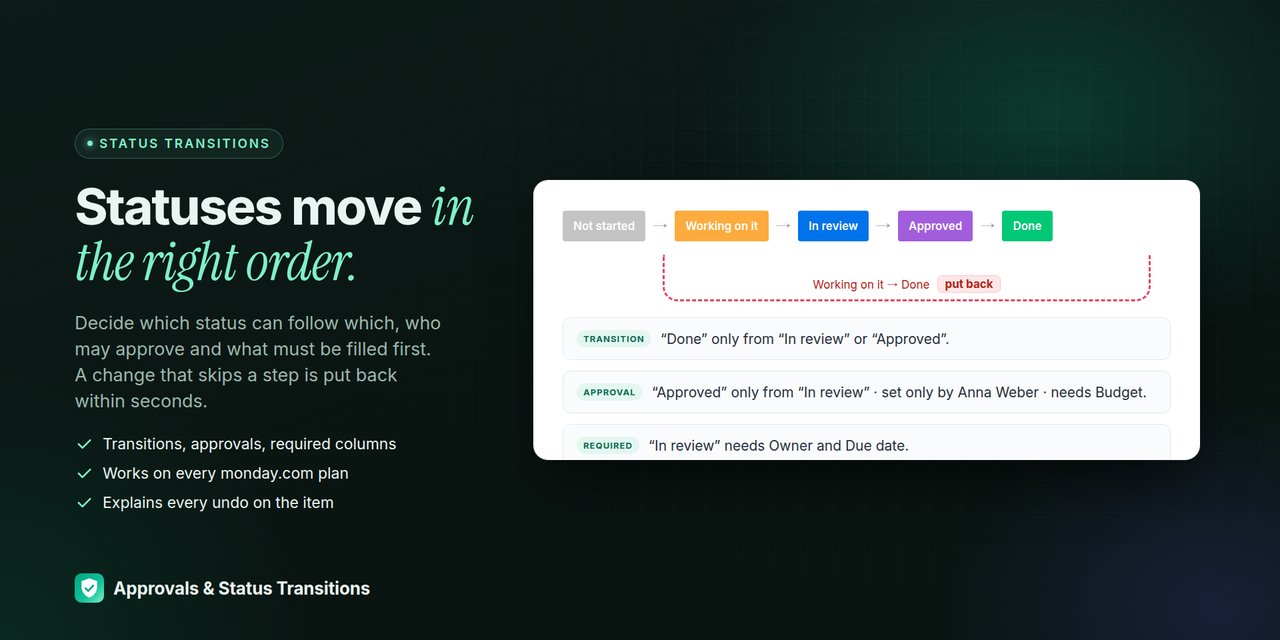
- Pick the status label to guard, for example Done, and tick the statuses it may come from, for example In review.
- The rule reads as one sentence: “Done” only from “In review”.
Add an approval rule
- Click Add an approval rule.
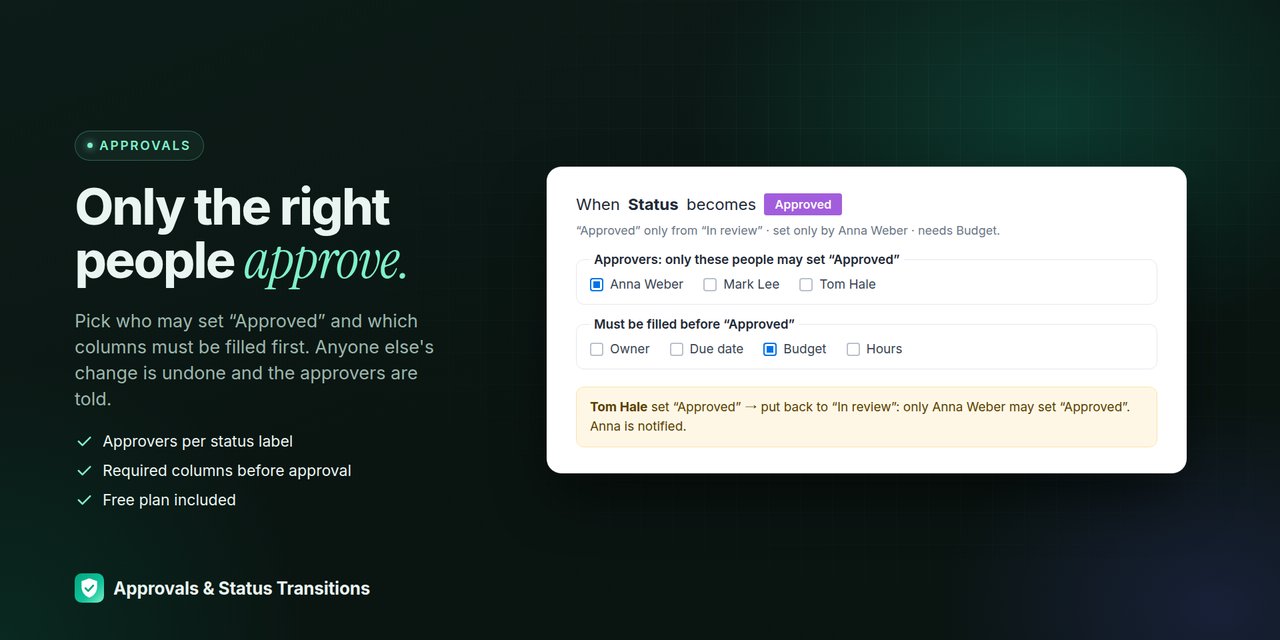
- Pick a label such as Approved and tick the people who alone may set it.
- A transition and an approval can be in the same rule: “Approved” only from “Pending approval”, set only by Anna. When someone else sets it, the change is undone and the approvers are told.
Approvers from the item itself: tick the item’s Manager (any People column of the board, such as Manager, Owner or Approver). Then the person in that column of each item may set the label, so every item can have its own approver. Teams in the column do not count. Anyone who can edit that People column can change who it is; for strict approval use listed people or restrict who may edit the column (monday column permissions).
Optional: required columns
Open Required columns in any rule (or click Add required fields) and tick the columns that must be filled before the status, for example Owner and Due date. For each rule choose Undo the change and tell them or Only tell them.
Rules for some items only
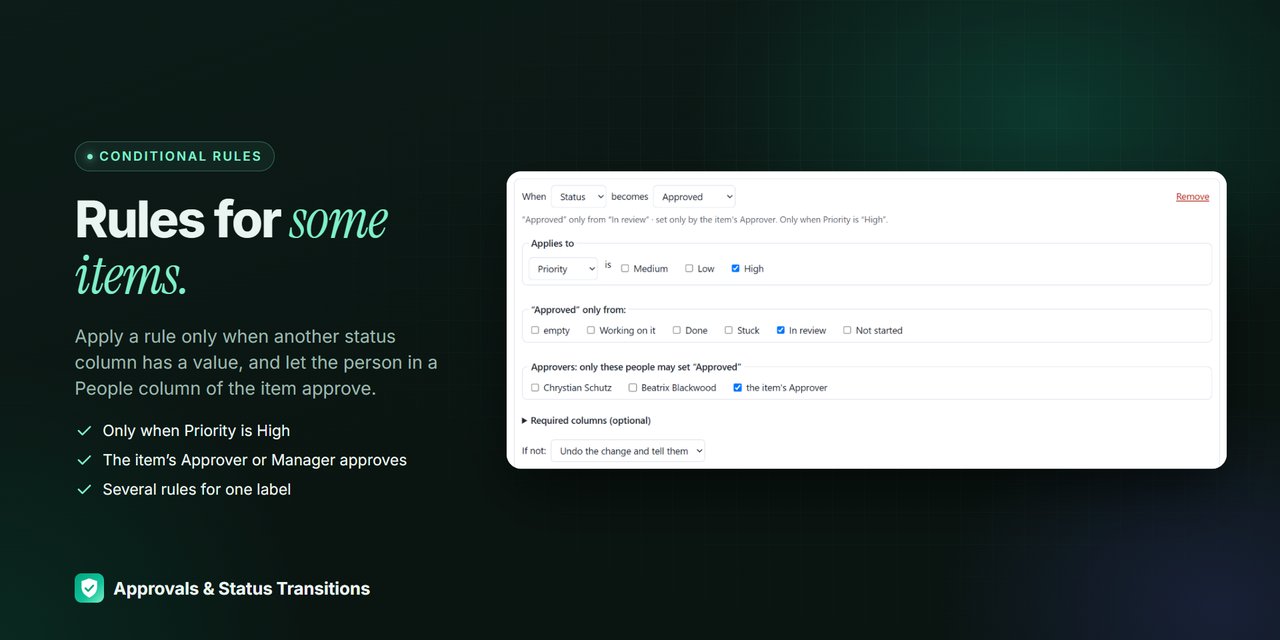
- In a rule, set Applies to to another status column and tick its labels, for example Type is “Bug” or Priority is “High”.
- The rule is checked only for items with that value. “Done” needs a Root cause, but only for bugs; features can have their own rule for the same label.
- The condition is read when the status changes. Changing Type later does not undo anything; use Check existing items to find such items.
Rule messages
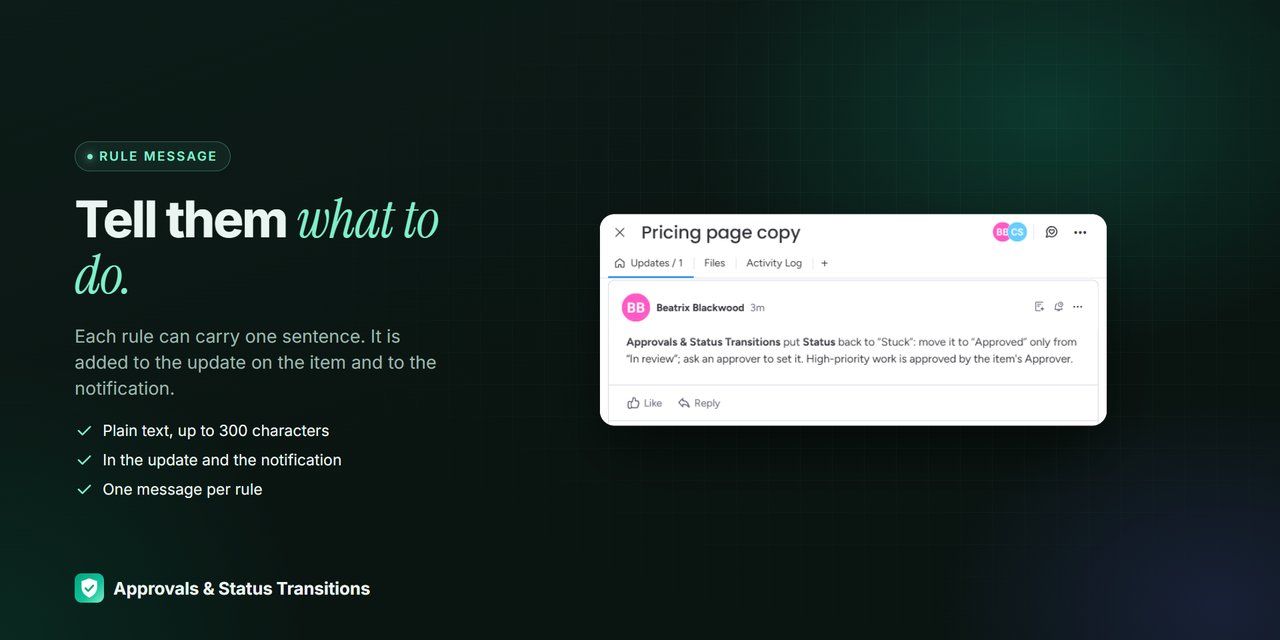
Each rule has an optional Message: one sentence (up to 300 characters) that tells people what to do, for example “Ask Finance in #deals”. It is added to the update the app posts on the item and to the notification. Plain text only; links are not made clickable.
Or create rules with AI
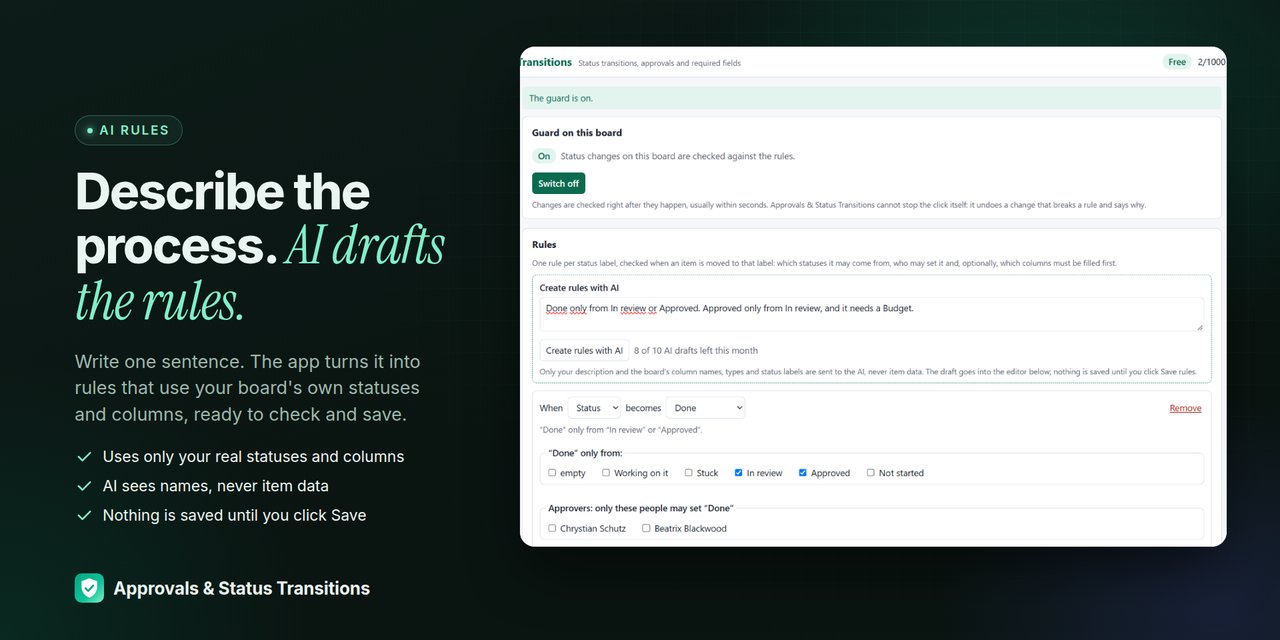
- In Create rules with AI, describe your process in one sentence, in any language, for example “Done only after review; only managers may approve, and Budget must be filled first” or “A Bug may be Done only with a Root cause; a Feature only by the item’s Manager”. The AI can draft conditions, approver columns and messages too.
- Click Create rules with AI. You get a draft that uses only your board’s real status labels and columns.
- Check the draft and pick the approvers yourself (the app does not send people to the AI). Nothing is saved until you click Save rules.
What the AI sees: only your description and the board’s column names, types and status labels, never item data or people. The model runs through OpenRouter on zero-data-retention providers (DeepInfra or Novita); nothing is stored by them or used for training.
Save and switch the guard on
- Click Save rules, then Switch on.
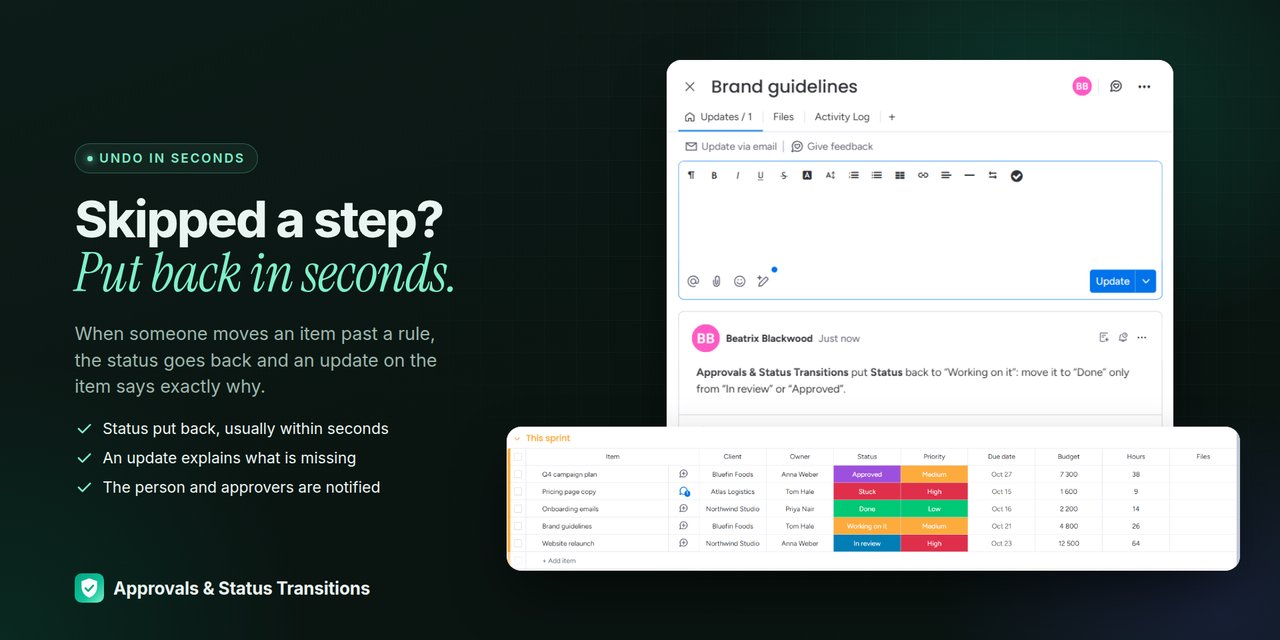
- A teammate who moves an item to “Done” straight from “Working on it” gets the status put back, an update on the item that says why, and a notification.
- The app puts back only the status label, ignores its own undo and checks the status again right before it puts it back, so a later fix by a person that it sees is kept. Clearing a status is never blocked.
Activity log and item view
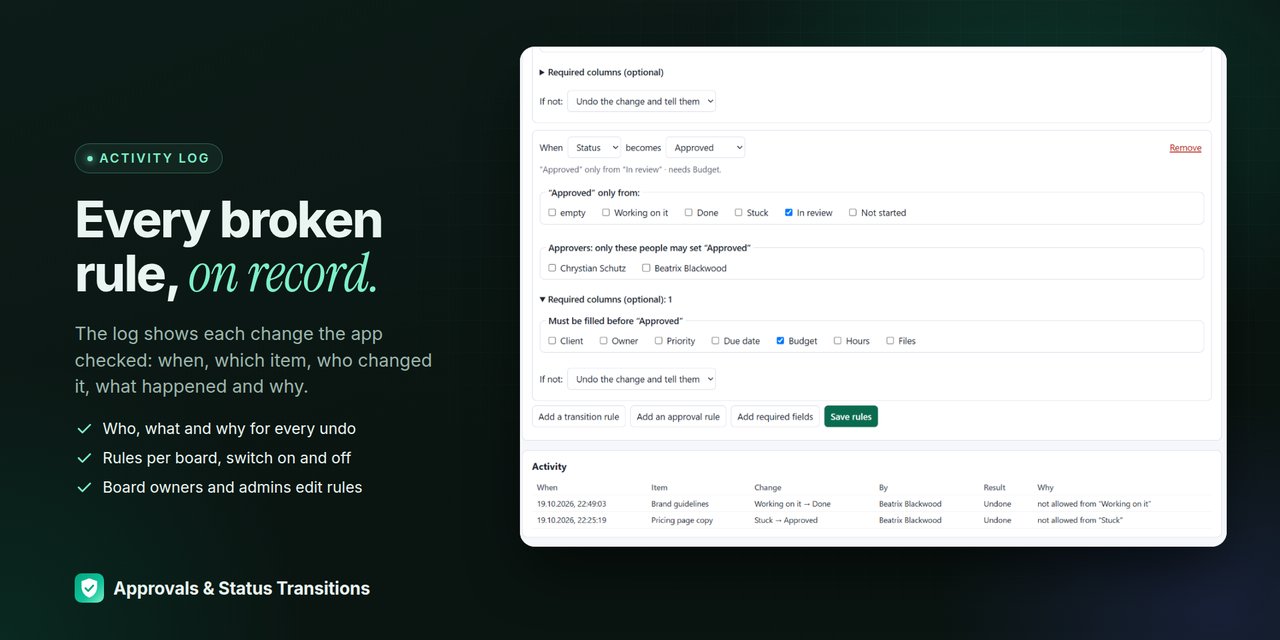
- The Activity list under the rules shows when, which item, which change, who made it, the result and why. Download as CSV saves the kept entries for an audit (cells that look like formulas are made safe for Excel).
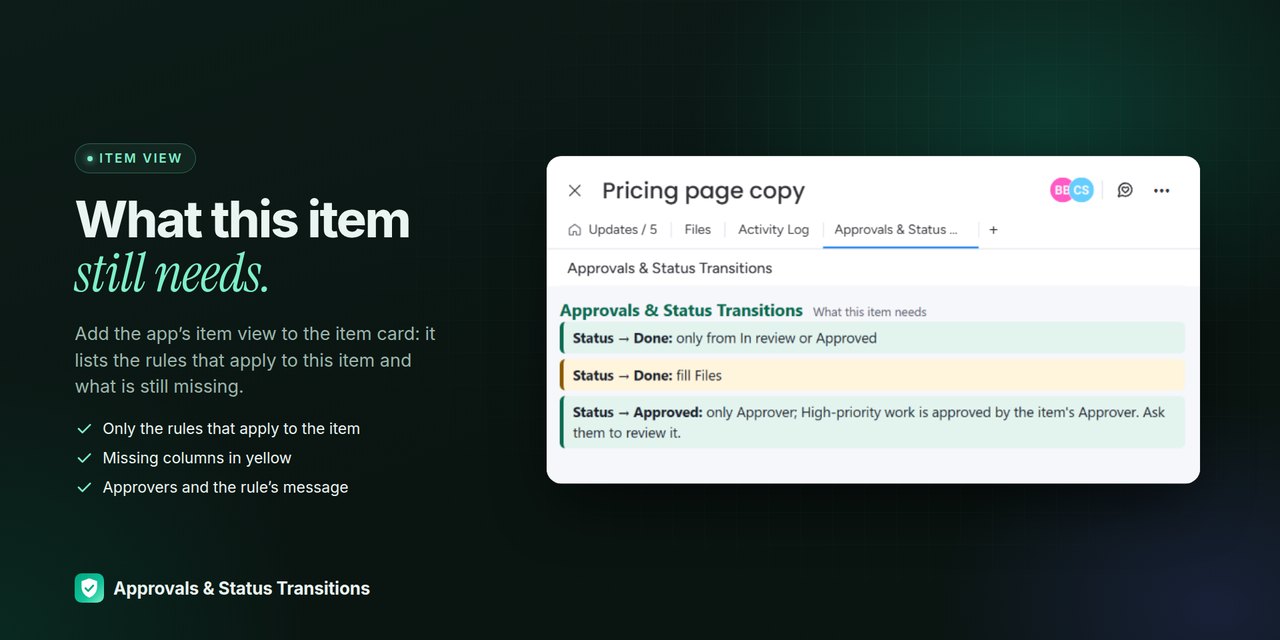
- Add the Approvals & Status Transitions item view so people see the rules of each guarded status and what is still missing before they change it.
Check existing items
Click Check existing items under the rules. The app reads the board (up to 1,000 items) and lists items that already sit in a guarded status but miss a required column, for example items set to “Done” before the guard was on. Conditions are taken into account. Transitions and approvers can only be checked when the status changes, so they are not part of this list. Nothing is changed.
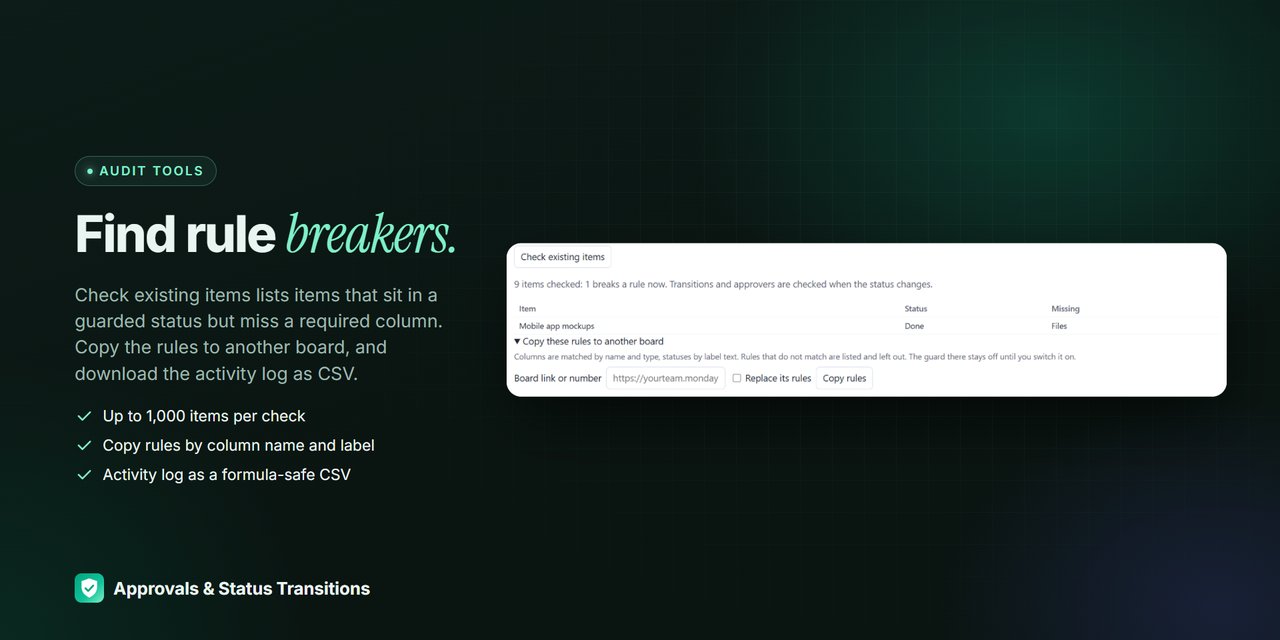
Copy rules to another board
- Open Copy these rules to another board and paste that board’s link or number. You need to own or administer both boards.
- Columns are matched by name and type, statuses by label text. Required columns or labels that the other board does not have are left out and listed; a rule whose condition does not fully match is skipped, so a copy never guards more items than the original.
- If the other board already has rules, tick Replace its rules. The guard there stays off until you switch it on.
Troubleshooting
- “Connect your monday account again”: the saved connection expired or misses a permission that a newer app version needs. If monday shows “This app requires additional permissions” on the view, an account admin clicks Review permissions → Update first; then click Connect monday.
- A change was not put back: check that the guard is On for this board and that the rule is saved. Changes made before the guard was switched on are not checked.
- Viewers and guests can see the rules and the log; changing them needs edit access to the board.
Free plan and limits
- The app is free: 3 guarded boards, 10 rules per board, 1,000 checks (status changes to a guarded label) and 10 AI drafts a month per account, with transitions, approvals and required columns. No card needed.
Privacy and data
- The app reads item values only while it checks a status change and does not keep them.
- We store the rules (column ids, labels, approver user ids), an activity log of recent checks (item id and name, user id, labels, result), the encrypted OAuth token and monthly usage counters.
- Servers are in the EU (France) behind Cloudflare. When you uninstall the app, all data of the account is deleted (technical error logs, which hold no board content, are rotated separately and may keep the account id until then). Details: privacy policy and terms.
Questions? contact@crimsonfern.com · we reply within 2 business days.