
Demo video
Before you start
- Who can install: only monday.com account admins can install apps from the marketplace.
- Who can create and change rules: account admins and board owners. Other members see the rules read-only; viewers and guests cannot change them.
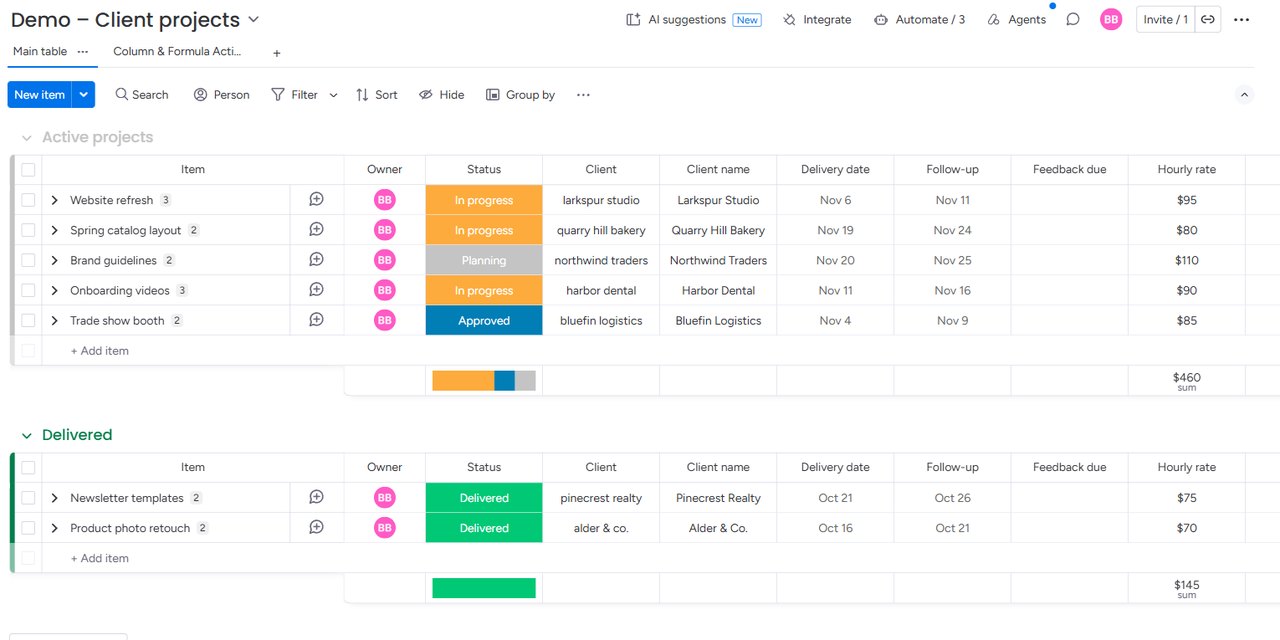
- A board with the source column (for example Delivery date) and the column the rule should write (for example Follow-up).
Install and add to a board
- In the monday.com marketplace, search for Column & Formula Actions and click Install.
- Open a board and click + next to the board views (or + Add view) → Apps → Column & Formula Actions.
- The first time, click Connect monday and approve access, so the app can read the board and write the target columns.
Create a rule
- Click New rule.
- The rule writes: text, a number or a date. Operation: what to do (see below).
- Read from: the source column. A new text rule may suggest a source whose changes can trigger it. Some operations take a second value: a number, a column, or the number of days.
- Write into: choose the target column yourself. New rules leave this unselected because the app cannot tell which columns already contain important data. Prefer an empty column that can hold the result; the editor warns when the type is unsuitable.
- When a source is empty: leave the target as it is, or clear it.
- Give the rule a name, or keep the one the app suggests.
Suggest with AI (optional)
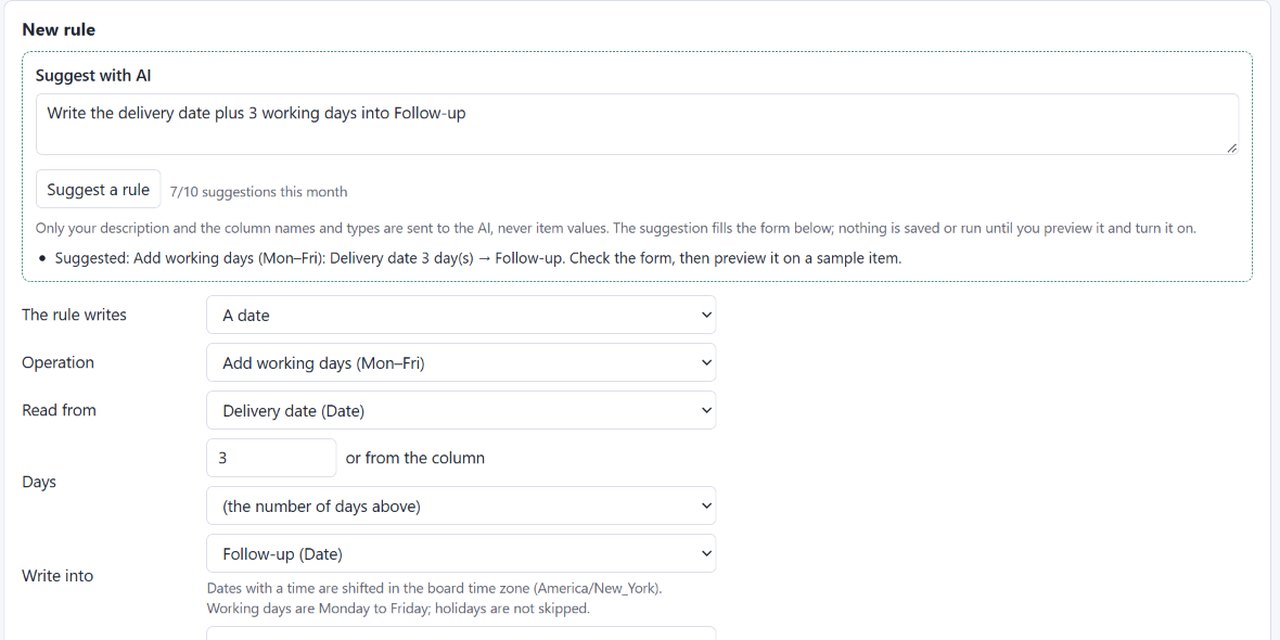
- In Suggest with AI, describe the rule in one sentence, for example “Write the delivery date plus 3 working days into Follow-up”.
- Click Suggest a rule. The form is filled in from your board’s real columns, and a short summary says what the rule will do.
- Check every field, then preview it. Nothing is saved or run before you turn it on.
What the AI sees: your description and the board’s column ids, titles and types (and the subitem columns). Never item names or values. The model runs through OpenRouter on zero-data-retention providers (DeepInfra or Novita); nothing is stored by them or used for training.
What a rule can do
- Text: copy, combine columns and text (with
{column}placeholders), UPPERCASE, lowercase, Title Case, trim spaces, extract a part (a number, digits, an e-mail address, a word, the text before or after a separator). - Numbers: copy, round (half up, down or up), add, subtract, multiply, divide, percent of, and from the subitems: the sum, average, minimum, maximum or count of a subitem column on the parent item. Numbers are calculated exactly, without floating-point errors.
- Dates: copy, add calendar days, or add working days (Monday to Friday). Dates with a time are shifted in the board time zone, which you can change under the rules. Public holidays are not skipped.
- Formula results: apps cannot write a formula column, but a rule can read its result and write it into a number or text column that you can sort, filter and use in other automations.
A rule runs when its source column changes (a subitem rule when a subitem value changes; a formula rule when one of the formula’s input columns changes). Changes to the item Name alone do not trigger rules. A rule that would run in a loop with another rule (A writes what B reads and B writes what A reads) is refused.
Preview and turn on
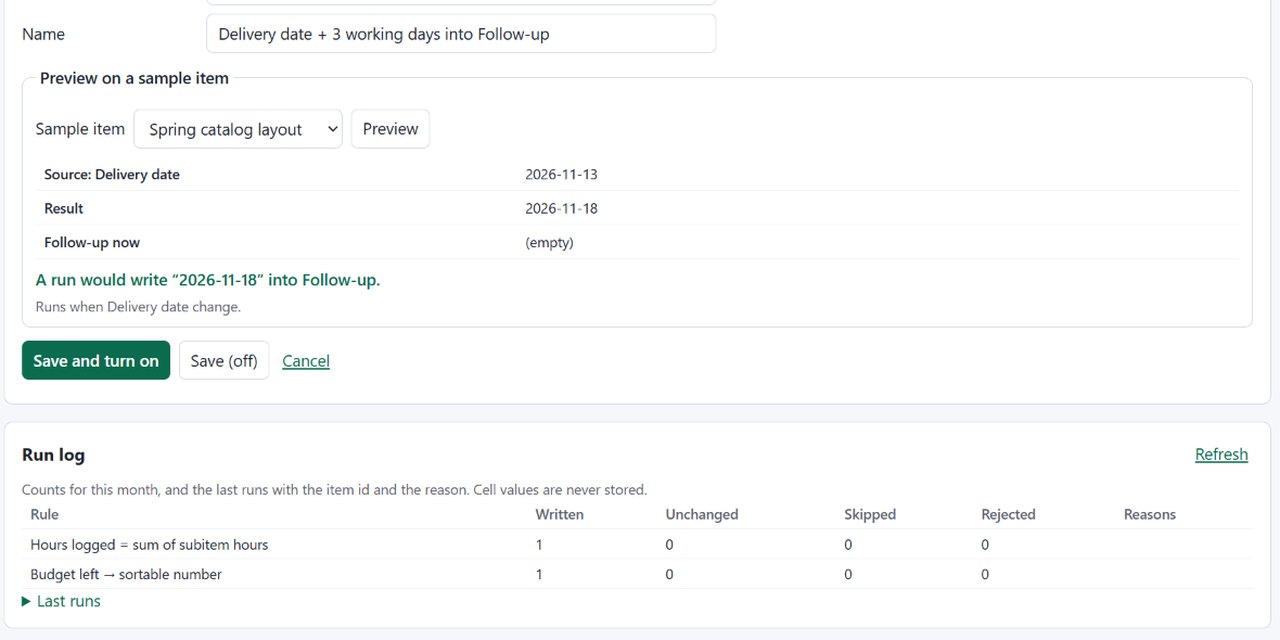
- Choose Write into first. Under Preview on a sample item, pick an item and click Preview. The button is unavailable until a target is chosen. You see the source value, the result, what the target holds now, and the sentence “A run would write …”. A preview writes nothing.
- Click Save and turn on. From now on every change of the source writes the target within seconds. Save (off) keeps the rule without running it; Turn on and Turn off switch it later.
Run log
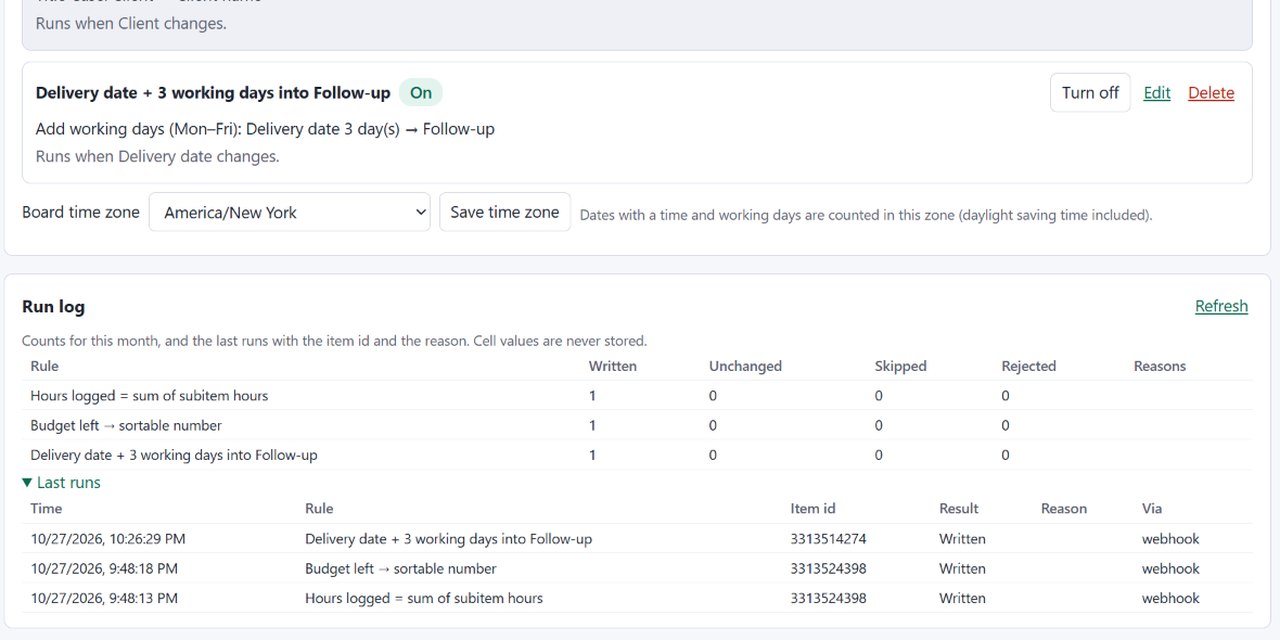
The Run log counts, per rule and month, the values written, unchanged, skipped and rejected, with the reasons. Last runs lists the latest runs with the time, the item id, the result and whether it came from a board change or an automation. Cell values are never stored. Click Refresh to update it.
Automations
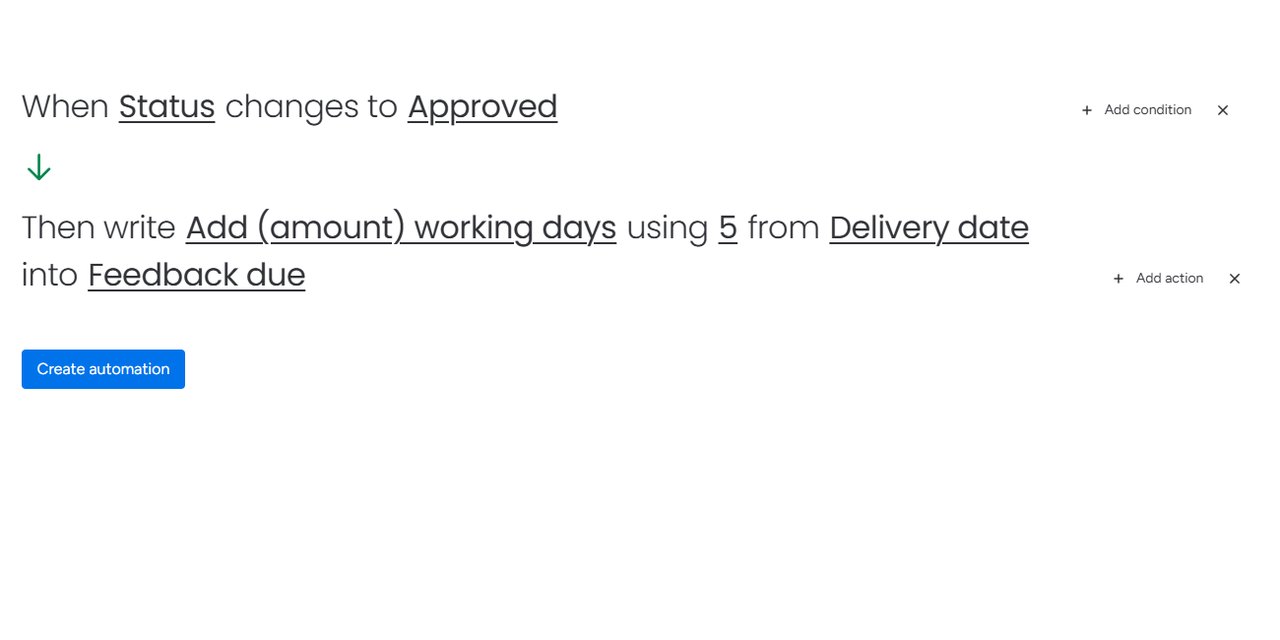
Open Automate on the board, create an automation and search Column & Formula in the action list. Four actions are available:
- Run a saved rule on the item that triggered the automation.
- Transform text, Calculate a number and Shift a date: the same operations as the rules, with the source and target columns chosen in the automation.
Example: “When Status changes to Approved, then write Add (amount) working days using 5 from Delivery date into Feedback due”. A monday retry of the same automation run does not write twice.
Troubleshooting
- “Connect your monday account again”: the saved connection expired or misses a permission that a newer app version needs. Click Connect monday again.
- The target did not change: check that the rule is On, then look at the run log. “Unchanged” means the target already held the result; “Skipped” and “Rejected” show the reason, for example an empty source or a value the target column cannot hold.
- Preview is unavailable for a new rule: choose a Write into target. The app does not choose a destination for you.
- Changing an item's Name did not run the rule: change the source column instead; Name changes alone do not trigger rules.
- A formula rule is late: monday recalculates formulas on its side; the rule runs when one of the formula’s input columns changes.
Free plan and limits
The app is free, no card needed: rules on 1 board, 3 active rules (20 saved), 100 runs a month (a run is one value the app writes) and 10 AI suggestions a month per account. The monthly counters start again on the 1st.
Privacy and data
- We store the rules (column ids, operation and options), the board time zone, the board webhooks the app created, the run log (counts and the last runs: rule, item id, time, result and reason, never a cell value), the encrypted OAuth token and monthly usage counters. The whole account state is encrypted at rest.
- The app reads the values a rule needs when it runs and writes only the target column; it never creates or deletes items. It works only on boards the person using it can open.
- Servers are in the EU (France) behind Cloudflare. When you uninstall the app, all data of the account is deleted (technical error logs, which hold no board content, are rotated separately and may keep the account id until then). Details: privacy policy, security and terms.
Questions? contact@crimsonfern.com · we reply within 2 business days.