
Demo video
Before you start
- Who can install: only monday.com account admins can install apps from the marketplace.
- A board with a status column whose labels change over time, for example support tickets moving from New to In progress, Waiting on customer and Done.
- Nothing has to be added to the board: no extra columns and no automations. The app only reads; it never changes items, columns or statuses.
Install and add to a board
- In the monday.com marketplace, search for Time in Status & Cycle Time and click Install.
- Open a board and click + next to the board views (or + Add view) → Apps → Time in Status & Cycle Time.
- The first time, click Connect monday and approve access, so the app can read the board and its activity log.
Board setup
- The view uses the board you opened it on. On first use, expand Board settings.
- Choose the Status column to measure and click Save status column. The report then opens automatically; Board settings stays collapsed on later visits.
Run the report
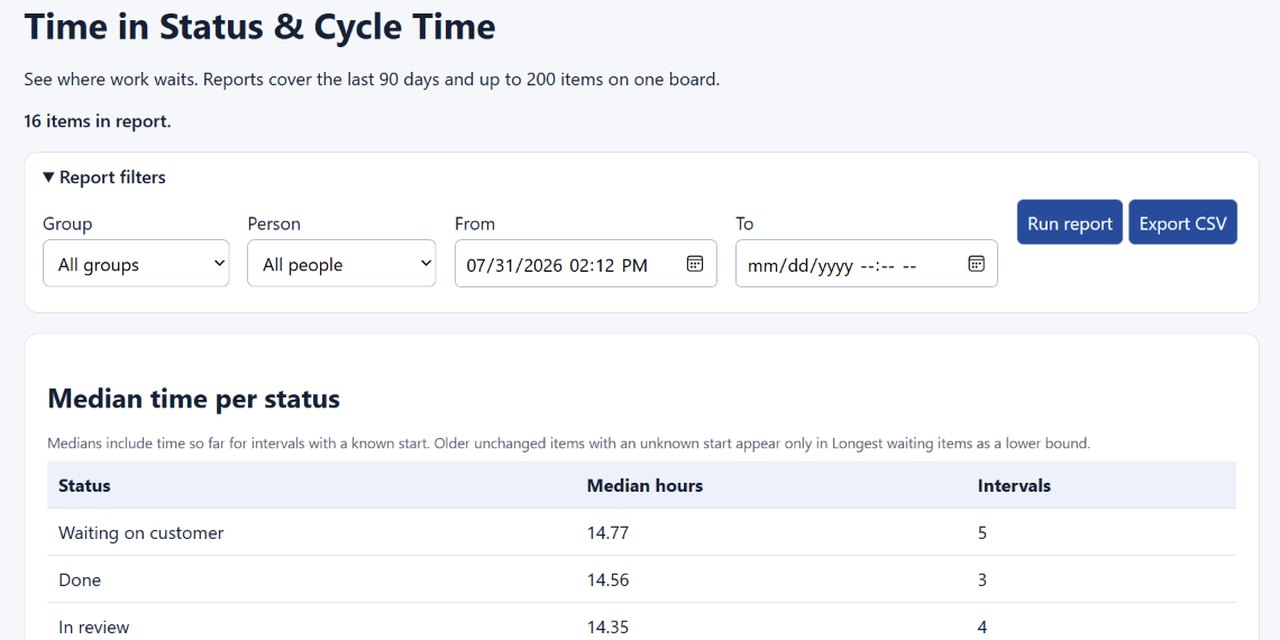
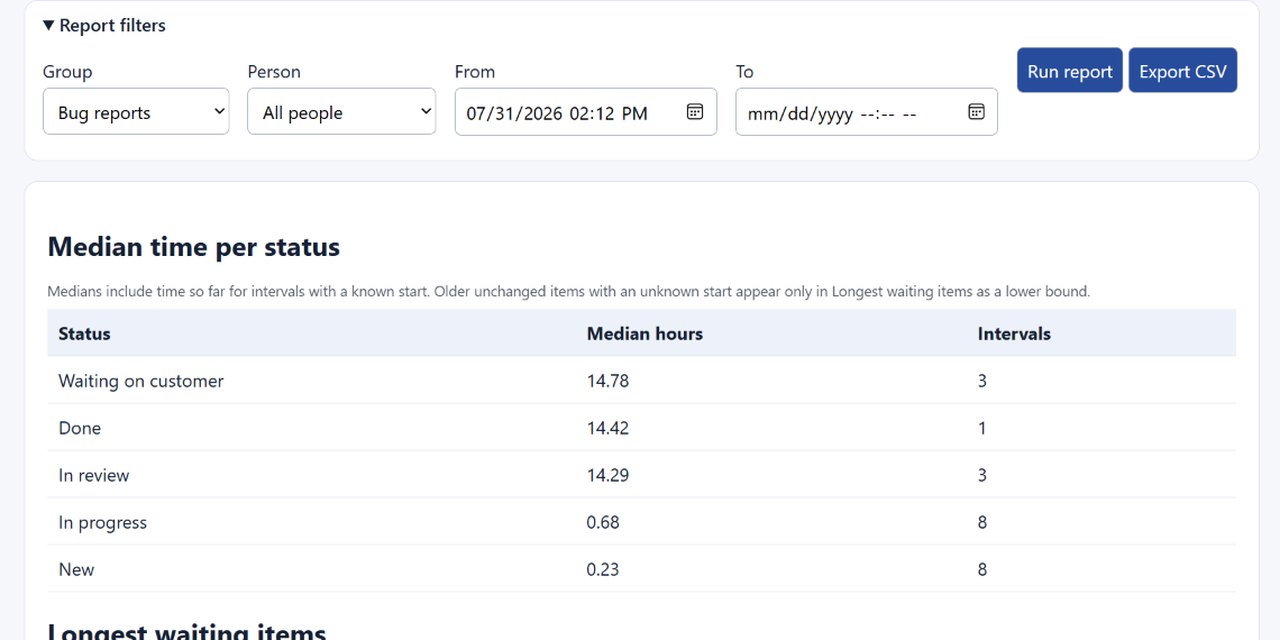
Expand Report filters to change the report:
- Group: keep All groups or choose one group.
- Person: keep All people or choose a person from the board.
- From and To: choose a range within the last 90 days. From starts 89 days back; leave To empty to use now.
Click Run report. The report covers up to 200 items. Changing a filter hides the previous result and disables Export CSV until a new run succeeds.
Read the report
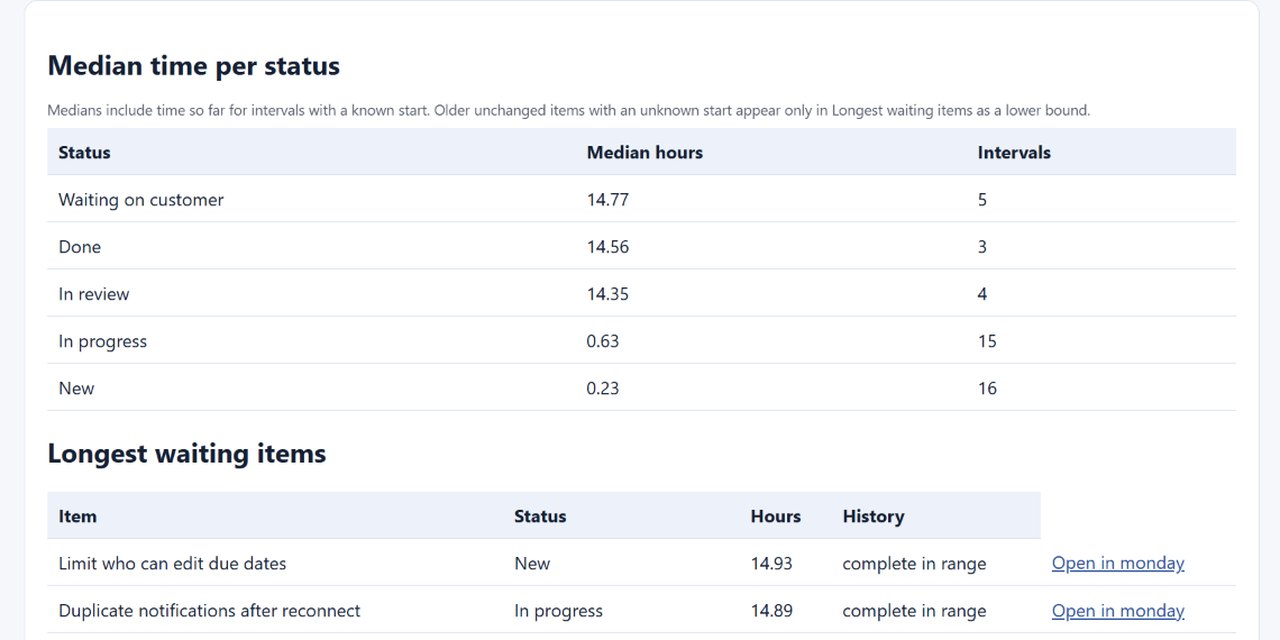
- Median time per status: the median hours an item spends in each status, and how many intervals (visits) were counted. The status at the top is where items wait longest.
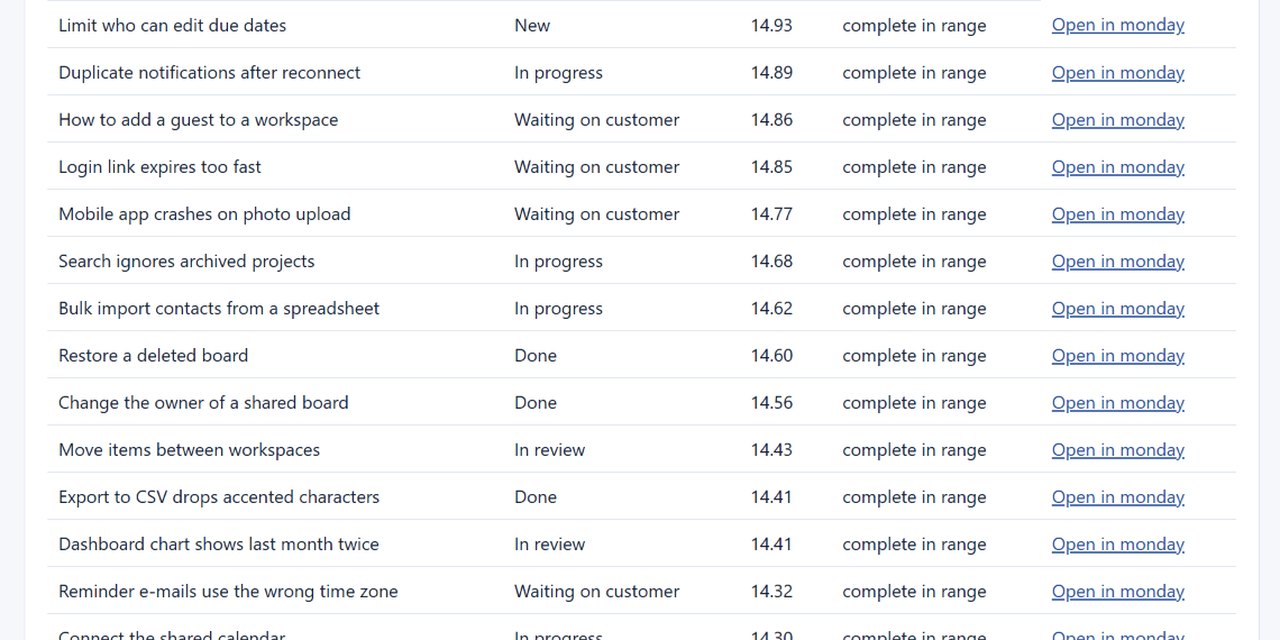
- Longest waiting items: items sorted by how long they have been in their current status, with Open in monday.
- Items: every item in the report, with Timeline.
Item timeline
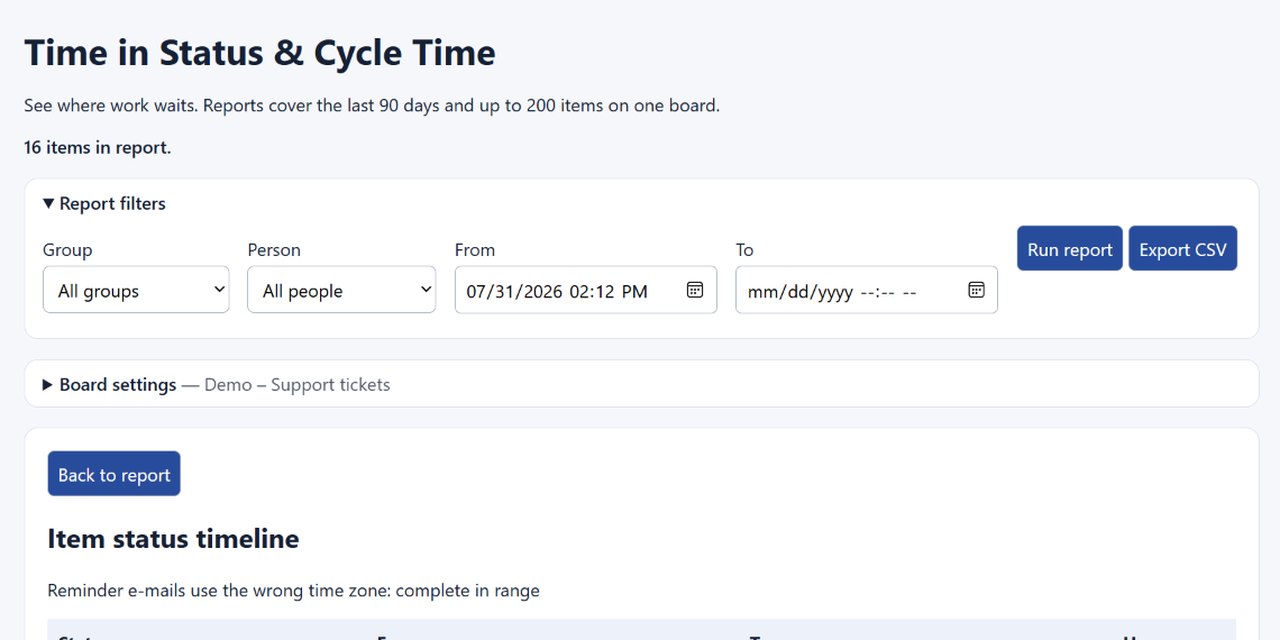
Click Timeline next to an item to see each status it had, from when to when, and the hours. An item that went back and forth (for example In review, then In progress again) shows every visit. Back to report returns to the report.
Export to CSV
After a successful run, Export CSV downloads one row per known status interval for that report's filters: item id, item, status, start, end, hours, partial history and the item link. It opens in Excel, Google Sheets or any BI tool.
How the hours are counted
- The report is rebuilt from the board’s activity log each time you run it, so status changes from before you installed the app are included, within the date range.
- Each duration starts at a known status or a recorded change. When the log does not reach back to an item’s start, the item is marked partial and the missing time is never assigned to its first status.
- The time an item has spent so far in its current status counts up to the end of the range (now, if To is empty).
- Hours are calendar hours, shown with two decimals; nights and weekends are not taken out.
Troubleshooting
- The Connect monday button appears again: the saved connection expired or misses a permission. Click Connect monday again.
- “No items match these filters”: try another group, person or date range. If a person is selected, the message names that person when no assigned items match.
- “Choose a range within the last 90 days”: the message gives the earliest allowed start. Move From forward; make sure To is after From and no later than now, or leave To empty.
- “Choose a valid group or person on this board”: choose an available group or person, or clear that filter.
- A run fails or Export CSV is disabled: correct the filters and click Run report again. The old report and timeline stay hidden, and export stays disabled, until a valid run succeeds.
Free plan and limits
The app is free, no card needed: 1 board per account, up to 200 items per report and the last 90 days of history.
Privacy and data
- We store only the board and status column you chose, the encrypted OAuth token and the account and user id. Reports and CSV exports are computed when you ask for them and not stored.
- The app requests read-only access (
me:read,boards:read) and makes no changes to your boards. No AI is used. - Servers are in the EU (France) behind Cloudflare. When you uninstall the app, all data of the account is deleted (technical error logs, which hold no board content, are rotated separately and may keep the account id until then). Details: privacy policy, security and terms.
Questions? contact@crimsonfern.com · we reply within 2 business days.